Speed up computer performance by resolving several frequent problems that can seriously impair output. Regardless of whether you use your laptop for work, gaming, or browsing, a slow machine can be very annoying. Thankfully, there are several efficient ways to increase your computer’s speed. This article offers detailed instructions on managing starting applications, wiping up your hard drive, and performing other maintenance tasks to keep your computer operating at peak performance.
1. Clean Up Your Hard Drive
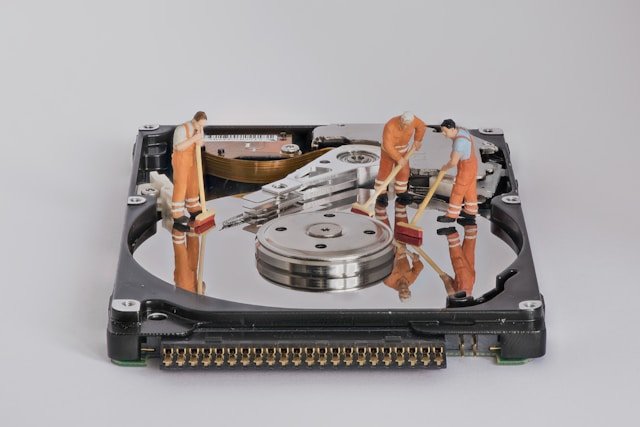
Over time, your hard drive accumulates unnecessary files that can slow down your computer. Regularly cleaning up your hard drive to speed up computer performance can free up space and improve overall efficiency.
Steps to Clean Up Your Hard Drive:
- Windows:
- Use Disk Cleanup: Go to Start > All Programs > Accessories > System Tools > Disk Cleanup. Select the drive you want to clean and follow the prompts.
- Delete Temporary Files: Press Win + R, type “temp”, and press Enter. Delete all files in the folder.
- Mac:
- Use the built-in Storage Management tool: Click the Apple menu > About This Mac > Storage > Manage. Follow the recommendations to free up space.
2. Uninstall Unnecessary Programs
Many programs run background processes that consume system resources. Uninstalling programs you no longer use can free up these resources.
How to Uninstall Programs:
- Windows: Go to Control Panel > Programs > Programs and Features. Select the program you want to uninstall and click Uninstall.
- Mac: Open Finder > Applications. Drag the application you want to delete to the Trash, then empty the Trash.
3. Manage Startup Programs
Over time, your hard drive accumulates unnecessary files that can slow down your computer. Regularly cleaning up your hard drive to speed up computer performance can free up space and improve overall efficiency. Additionally, programs that start automatically when your computer boots can significantly slow the startup process. Managing these startup programs can improve boot time and overall performance. Addressing these issues can significantly speed up computer operations and enjoy a smoother, more responsive system.
How to Manage Startup Programs:
- Windows: Press Ctrl + Shift + Esc to open Task Manager. Go to the Startup tab and disable unnecessary programs.
- Mac: Click the Apple menu > System Preferences > Users & Groups > Login Items. Select the programs you want to remove and click the minus (-) button.
4. Upgrade Your Hardware
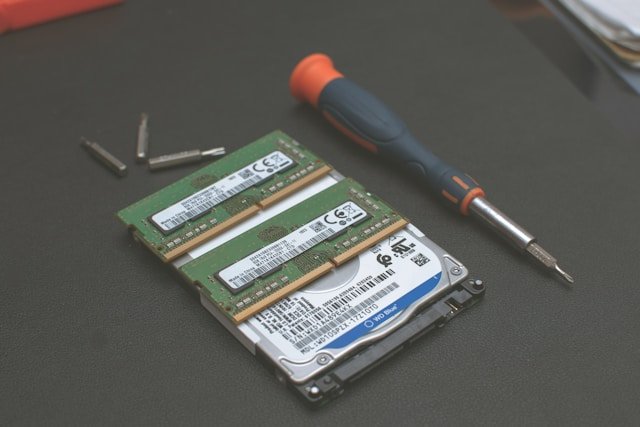
Sometimes, the best way to speed up your computer is to upgrade your hardware. Adding more RAM or switching to a Solid State Drive (SSD) can significantly affect performance.
Recommended Upgrades:
- RAM: Upgrading from 4GB to 8GB or more can provide a noticeable boost in performance, especially for multitasking.
- SSD: Replacing your traditional hard drive with an SSD can dramatically improve boot times and overall speed.
5. Update Your Operating System and Drivers
Keeping your operating system and drivers up to date ensures your computer runs efficiently and securely. Updates often include performance improvements and bug fixes.
How to Update Your System:
- Windows: Go to Settings > Update & Security > Windows Update. Click Check for updates.
- Mac: Click the Apple menu > System Preferences > Software Update. Follow the prompts to install any available updates.
6. Optimize System Settings
Tweaking your system settings can help improve performance. This includes adjusting visual effects, managing power settings, and more.
System Settings to Optimize:
- Windows:
- To adjust Visual Effects, Right-click on This PC > Properties > Advanced system settings > Performance Settings. Select Adjust for best performance.
- Manage Power Settings: Go to Control Panel > Hardware and Sound > Power Options. Select High Performance.
- Mac:
- Reduce Transparency: Go to System Preferences > Accessibility > Display. Check Reduce transparency.
- Manage Energy Saver: Go to System Preferences > Energy Saver and adjust settings for better performance.
7. Scan for Malware and Viruses
Malware and viruses can significantly slow down your computer. Regularly scanning your system with reliable antivirus software can help keep it running smoothly.
Recommended Antivirus Software:
- Windows: Use Windows Defender or third-party options like Bitdefender, Norton, or McAfee.
- Mac: Use built-in tools or third-party options like Malwarebytes.
8. Defragment Your Hard Drive
Defragmenting your hard drive can improve access times and overall system performance by organizing fragmented data.
How to Defragment Your Hard Drive:
- Windows: Go to Control Panel > System and Security > Administrative Tools > Defragment and Optimize Drives. Select the drive and click Optimize.
- Mac: Macs with SSDs don’t require defragmentation. For traditional hard drives, use third-party tools like iDefrag.
9. Clear Browser Cache
A large browser cache can slow down your internet browsing experience. Regularly clearing your browser cache can help improve performance.
How to Clear Browser Cache:
- Chrome: Click the three dots in the upper right corner > More tools > Clear browsing data. Select Cached images and files and click Clear data.
- Firefox: Click the three lines in the upper right corner > Options > Privacy & Security > Cookies and Site Data > Clear Data.
10. Disable Unnecessary Services
Certain services running in the background can slow down your computer. Disabling unnecessary services can free up system resources.
How to Disable Services:
- Windows: Press Win + R, type “services.msc”, and press Enter. Right-click on the services you don’t need and select Properties. Change the Startup type to Disabled.
- Mac: Use third-party tools like CleanMyMac to manage startup services and background processes.
Following these proven tips can significantly speed up your computer and enhance its performance. Whether you clean up your hard drive, manage startup programs, or upgrade your hardware, these strategies will help keep your computer running smoothly. Regular maintenance and optimization can prevent slowdowns and ensure your system remains efficient and reliable.
For further reading, visit Microsoft’s guide on optimizing Windows and Apple’s tips for improving Mac performance.
Leave a Reply